
Social Media & Messaging

Search intent: how to use two whatsapp accounts on iphone

How to use two WhatsApp accounts on iPhone

Run two WhatsApp Web logins on one iPhone with XBrowser Spaces—no clone apps. Isolated cookies keep chats from mixing.

The pain

Official WhatsApp is one account per app install. Clone apps feel risky, and Safari usually means log out / log in.

How XBrowser solves it

Create two Spaces (Personal / Work). Open WhatsApp Web in each Space once. Switch with the Space chip—or Split View both at once.
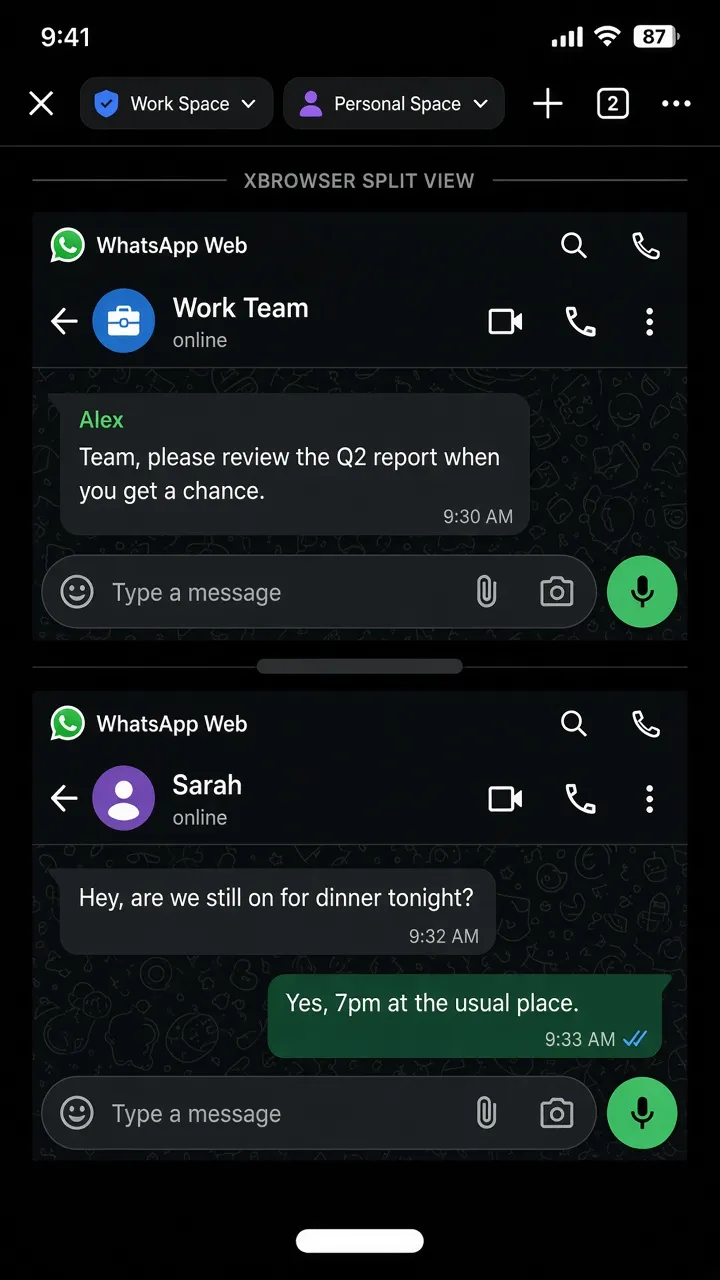
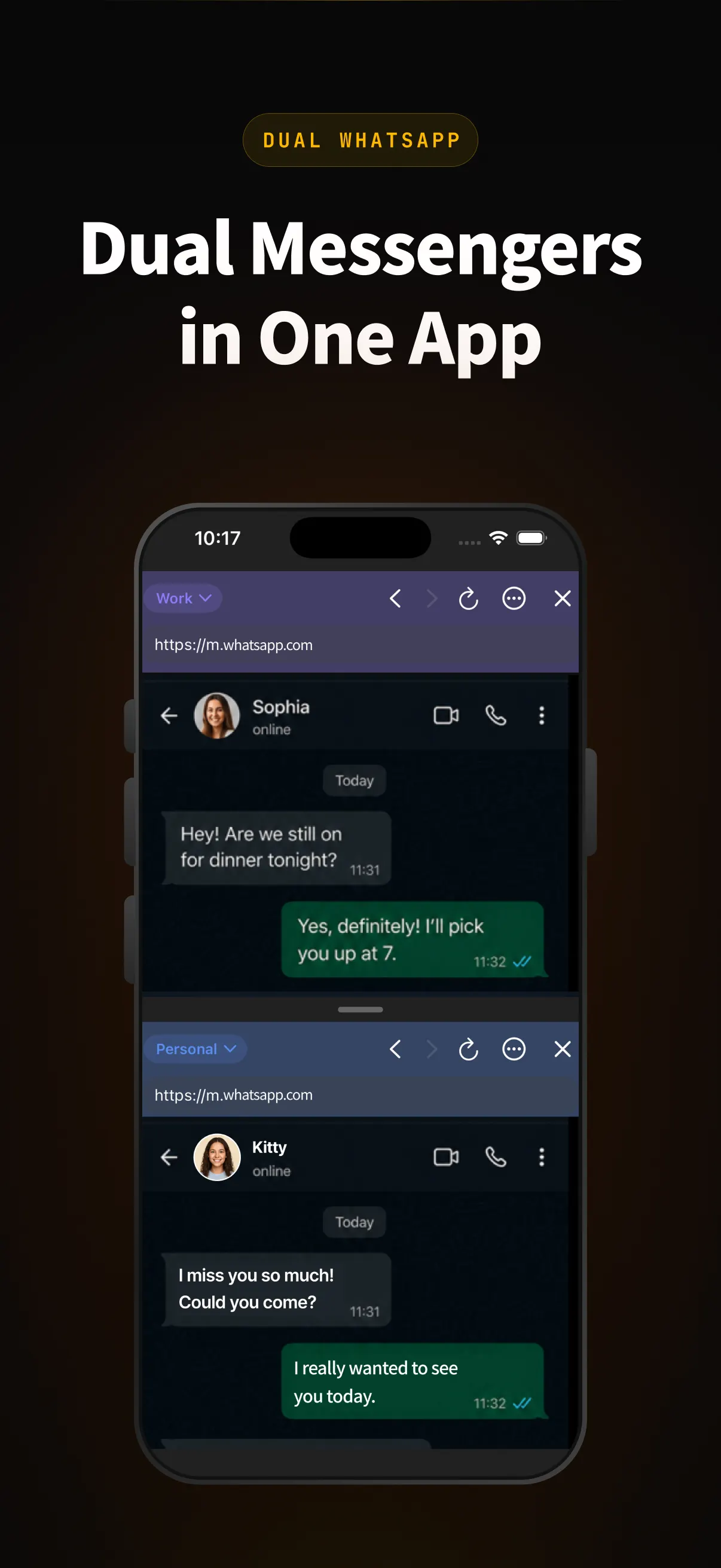
XBrowser managing multiple WhatsApp Web sessions on iPhone with isolated Spaces

Step-by-step

XBrowser Split View showing two WhatsApp Web accounts side by side on iPhone
TODO · Video

Screen recording: create two Spaces → link two WhatsApp Web accounts → switch chip → Split View dual chats.

Replace this block with an embedded MP4 / YouTube / App Store preview when ready.

Does this replace the WhatsApp app?

You use WhatsApp Web inside XBrowser. Features follow WhatsApp’s web client, which can differ from the native app.

Will the two accounts share cookies?

No—each Space has its own cookie jar. That is the point of Spaces.

Does this hide my IP from WhatsApp?

No. Spaces isolate on-device sessions. They do not change network IP.

Spaces isolate cookies and local libraries on your device. They do not change your IP or bypass platform rules. Use XBrowser to avoid mix-ups—not to violate site terms.

Try it on your iPhone

Privacy browser + independent multi-account Spaces. Free includes up to 3 Spaces.

Download on the App Store